Mastering Blending Brush Procreate for Realistic Art
Digital painting often feels like a balancing act between precision and fluidity. While many artists struggle to replicate the soft, organic transitions of traditional media on a screen, the right tools can bridge that gap instantly. A Blending Brush Procreate is designed specifically to solve this challenge, allowing you to smooth colors, create gradients, and mimic the behavior of water-based paints with remarkable ease. Whether you are sketching a quick character design or working on a detailed landscape, having a reliable blending tool in your digital arsenal transforms how you approach color theory and texture.
The Power of Digital Watercolor Simulation
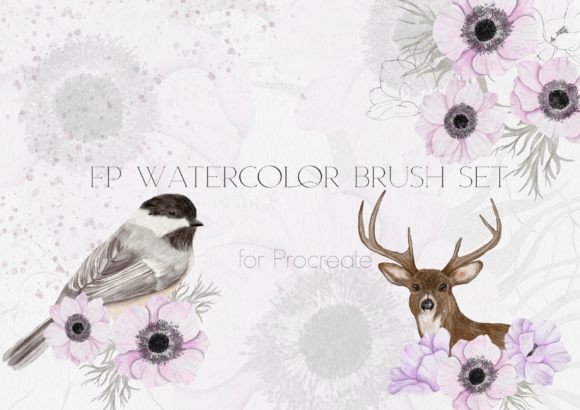
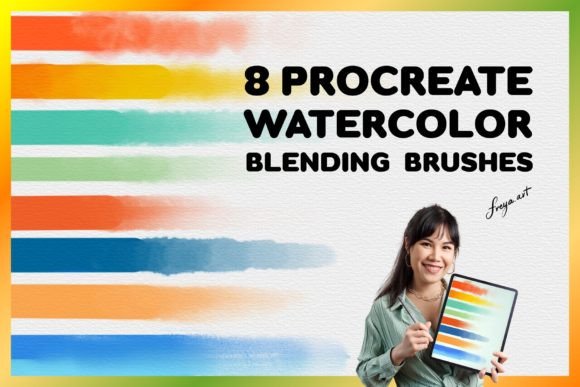
At its core, a blending brush functions as a digital eraser for harsh lines and a mixer for pigments. Unlike standard smudge tools that might leave behind muddy artifacts, high-quality blending brushes are engineered to respect the underlying layer structure while moving pixels naturally. When you look at a set like the Set of 8 Procreate Watercolor Blending Brushes, you are looking at a collection designed to replicate the specific physics of water and pigment interacting on paper.
These brushes are not just about blurring; they are about control. They allow you to push wet paint around before it dries, creating those signature blooms and soft edges found in traditional watercolor art. The inclusion of eight distinct blender wash brushes means you have options ranging from a fine detail tip for delicate highlights to a broad, soft stroke for washing large areas of sky or fabric. This variety ensures that your workflow remains uninterrupted, as you can switch between techniques without leaving the canvas.
Why Texture Matters in Digital Painting
One of the most common pitfalls in digital art is the "plastic" look that occurs when surfaces are too smooth. To combat this, professional artists rely on texture to add depth and realism. This is where the bonus Paper Texture Brush included in the set becomes invaluable. By applying a subtle grain over your blended layers, you break up the perfect digital uniformity, giving your artwork a tactile quality that resonates with viewers.
Using a texture brush in conjunction with your blending tools creates a layered effect. You can blend your colors smoothly first, then apply the paper texture to unify the strokes and ground them in a realistic environment. This technique is particularly effective for portraits, botanical illustrations, and background environments where the interplay of light and surface roughness defines the mood of the piece.
Practical Applications for Every Skill Level
The versatility of these tools makes them suitable for a wide range of users, from hobbyists exploring their creativity to professionals delivering client work. For beginners, the learning curve is significantly flattened because the brushes handle much of the complex mechanics of color mixing automatically. You don't need to master the intricate settings of opacity and flow manually; the brush responds intuitively to your input.
- Character Design: Use the softer blending brushes to create skin tones that transition naturally, avoiding the banding effects common in digital shading.
- Landscape Art: Utilize the broader wash brushes to paint distant mountains or misty atmospheres, achieving a sense of depth through atmospheric perspective.
- Product Mockups: Entrepreneurs and marketers can use these brushes to create realistic renderings of products, adding soft shadows and highlights that make items pop in promotional materials.
- Educational Content: Teachers and content creators can demonstrate color theory principles more effectively by showing how colors interact and merge in real-time.
For freelancers and small business owners, time is a critical resource. Having a pre-configured set of brushes that works out of the box saves hours of setup and tweaking. Instead of spending time adjusting individual brush dynamics, you can focus entirely on the creative process, meeting deadlines faster and maintaining a consistent style across your portfolio.
Essential Hardware and Compatibility Notes
Before diving into your next project, it is crucial to understand the technical requirements to get the most out of these tools. These brushes are built exclusively for the Procreate app for iPad. They utilize specific engine features unique to Procreate that do not translate to other software environments. Consequently, they will not function in Adobe Photoshop, Clip Studio Paint, or any desktop-based applications. If you are a multi-platform artist, remember to keep these files reserved for your iPad workflow.
Furthermore, the true potential of a blending brush is unlocked through pressure sensitivity. The brushes are calibrated to respond to the amount of force you apply with your stylus. This is why they work best when used with an Apple Pencil. Light pressure allows for gentle nudging of pixels, ideal for softening edges, while heavier pressure enables more aggressive blending, similar to scrubbing wet paint with a brush. Without a pressure-sensitive tool, the dynamic range of the brush is lost, resulting in flat and less expressive strokes.
Getting Started: Instant Access and Workflow
One of the greatest advantages of digital assets is immediate availability. Upon completing your purchase, you gain access to an Instant Download. There is no waiting for shipping or physical media. You can import the .brushset file directly into your Procreate gallery within minutes of buying. This immediacy allows you to test the brushes immediately, integrating them into your current projects without delay.
To install them, simply tap the downloaded file, select "Import," and choose your desired folder within Procreate. Once imported, the set of eight watercolor blenders and the bonus texture brush will appear ready to use. It is recommended to organize your workspace by creating a custom palette that groups these blending tools together, ensuring you can switch between them seamlessly during a painting session.
Maximizing Your Creative Potential
Choosing the right tools is only the first step; understanding how to leverage them is where the magic happens. When using the Set of 8 Procreate Watercolor Blending Brushes, experiment with different layer modes. Sometimes, setting your blending layer to "Multiply" or "Overlay" can enhance the interaction between the brush and the colors beneath it. Additionally, varying the size of your brush while blending can create interesting gradients that mimic the natural variation of a hand-painted stroke.
Remember that digital art is non-destructive. Unlike traditional watercolor, where a mistake can ruin a painting, you can undo, redo, and adjust your blending at any stage. This freedom encourages experimentation. Try blending colors that you wouldn't normally mix, or use the paper texture brush to create abstract backgrounds that serve as a foundation for more structured elements.
Whether you are an educator teaching students about color harmony, a blogger illustrating a post, or a professional illustrator building a brand, these brushes offer a practical solution to the age-old problem of digital flatness. By embracing the capabilities of a dedicated Blending Brush Procreate, you unlock a new level of expressiveness, bringing your digital visions to life with the warmth and fluidity of traditional art.